


How to Improve SEO Through Google Search Console
Google Search Console is one of the most popular and effective SEO tools available online. It lets business owners track their website’s search traffic and performance. It also helps them identify and resolve issues such as technical errors, sitemap issues, and backlink concerns.
Let us explore how you can improve your SEO using Google Search Console.
Source: MyCodelessWebsite.
How Does Google Search Console Improve Site Performance?
Google Search Console (formerly known as Google Webmaster Tools) allows website owners to monitor and troubleshoot their site’s appearance in search results. Its tools and reports can help you monitor, evaluate, analyze, and further improve your website’s performance and search traffic.
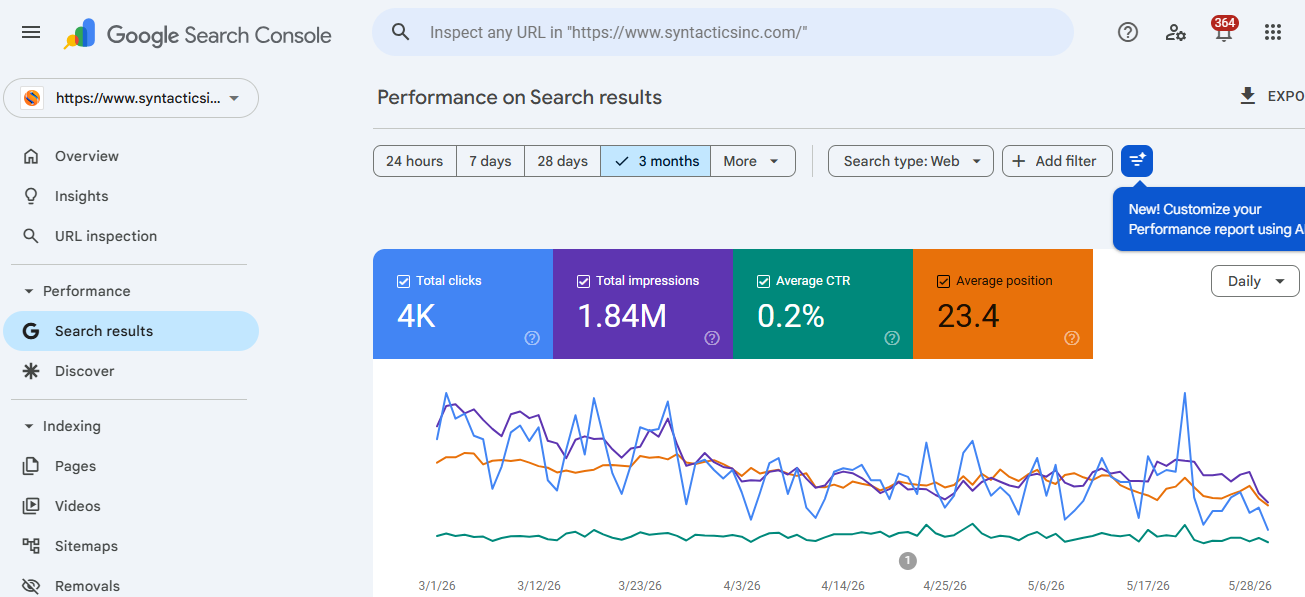
Through Google Search Console’s Search Analytics, you can optimize your content. You can check which search queries lead users or visitors to your website. It allows you to analyze your website’s impressions, clicks, and positions on Google Search.
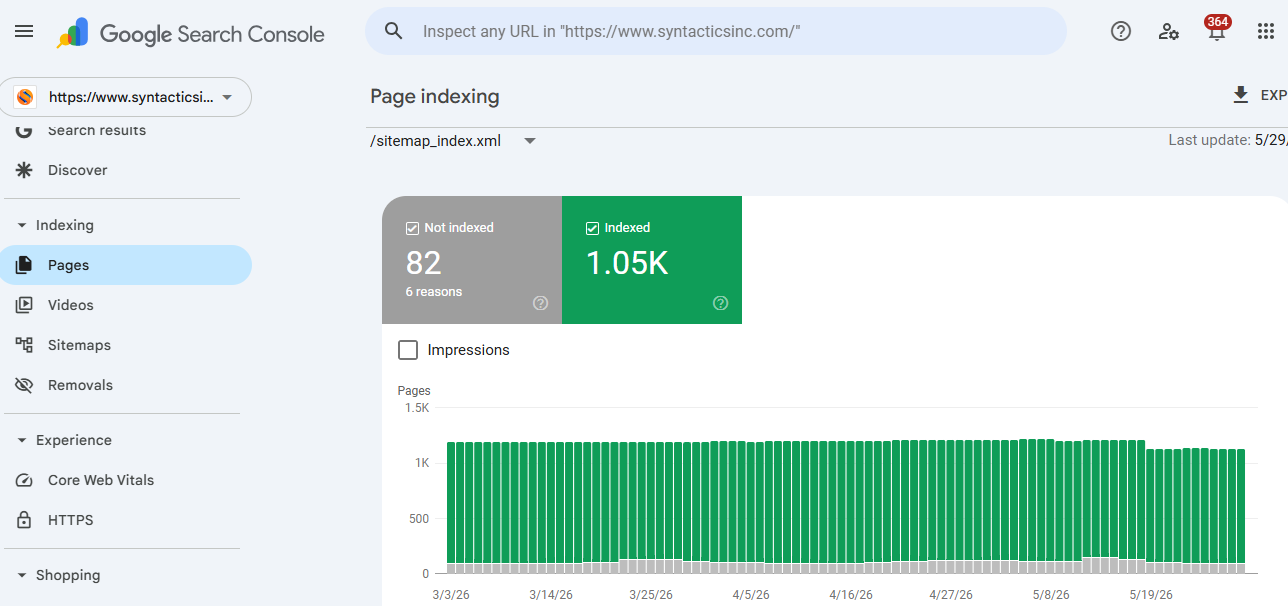
Furthermore, Google Search Console helps you get your content on Google through sitemaps and individual URLs for crawling. Thus, you must review your site’s index coverage to guarantee that the search engine has an updated view of your website.
Google Search Console also notifies you of particular website issues and fixes that you need to address immediately. If ever certain parts of your website, such as links and other page content, are not functioning as expected, Google Search Console will send you email alerts and other notifications.
Lastly, because search engines crawl pages, Google Search Console’s URL Inspection tool helps your site get indexed properly. In doing so, search engines such as Google Search can easily see, crawl, and understand what your website is all about.
How Do I Set Up My Google Search Console Account?
When setting up your Google Search Console account, the first thing to do is to sign in to Search Console using your Google account. After that, you will see a welcome message asking you to select a property type.
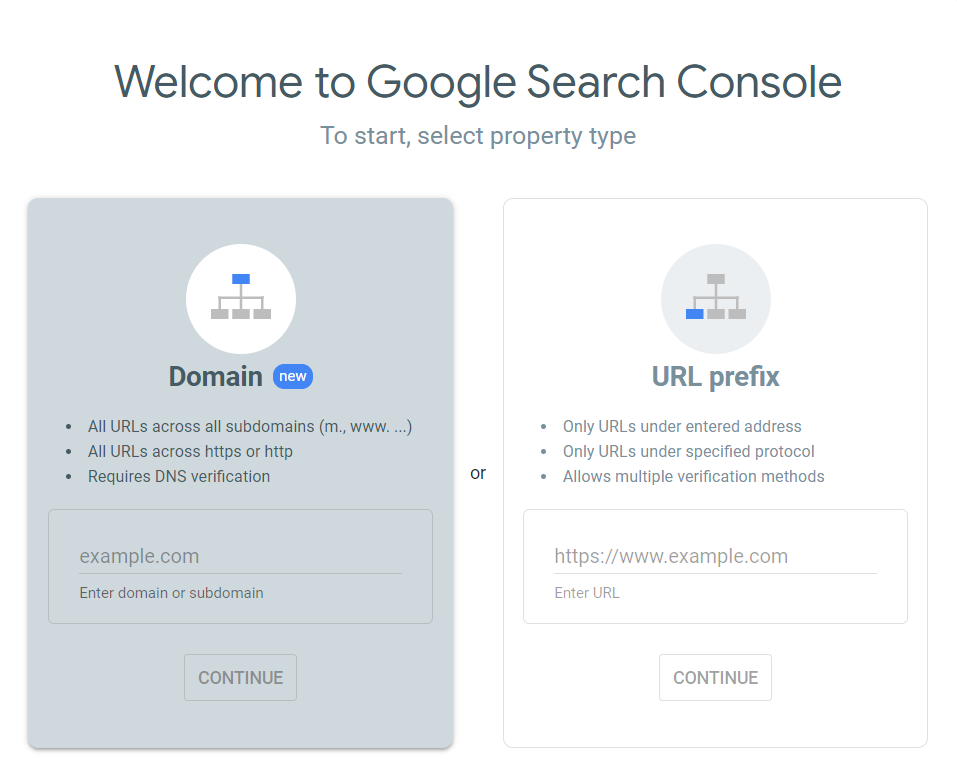
You can choose to enter a domain or a subdomain (without the http(s)://). You can also choose to enter a URL. Hit the “Continue” button to finish setting up your Google Search Console account.
How Do I Verify My Google Search Console Account?
The following are the recommended and alternate methods on you can verify your Google Search Console account:
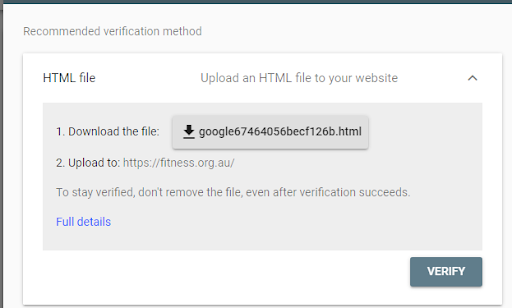
HTML Verification File
Under the “Recommended verification method” tab, download the HTML verification file to your computer. Upload the file to the root folder of your site (the folder that contains wp-content, wp-config.php, and other files). Then, head back to Google Search Console and click on the “Verify” button to complete the verification process.
HTML Tag
Under the “Other verification methods” tab, copy the meta tag and paste it into your website’s home page. Insert the meta tag into the <head> section, before the first <body> section, of your home page. Then, click the “Verify” to complete the verification process.
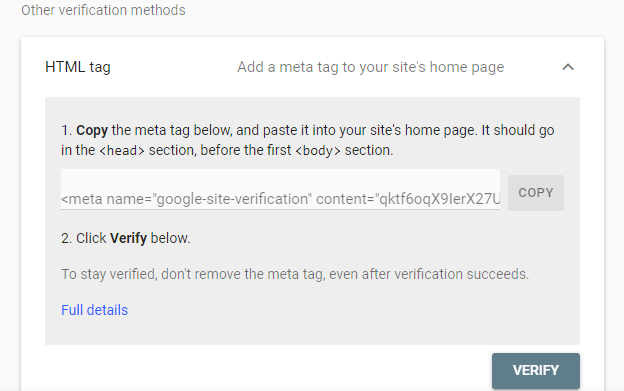
HTML Tag Verification Method
DNS TXT Record
This method lets you add a TXT record to the DNS configuration rather than adding code to your website. Just sign in to your domain name provider, then copy and paste the provided TXT record into your site’s DNS configuration. Then, click the “Verify” button to finish the verification process.
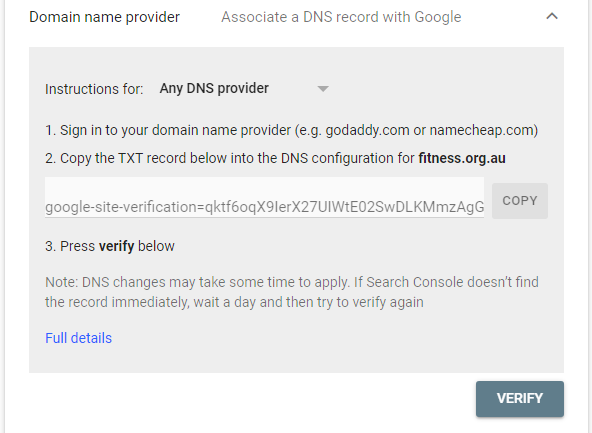
DNS TXT Record Verification Method
Google Analytics
You can quickly verify your site in Google Analytics if you already have the Google Analytics asynchronous tracking code installed. First, head to your homepage and ensure that it has either the analytics.js or gtag.js snippet installed.
Then check whether the tracking code is in the <head> section of that page. Check if you have the “edit” permission for the Google Analytics property. Once everything is in place, as mentioned, you can click the “Verify” button to complete the verification process.
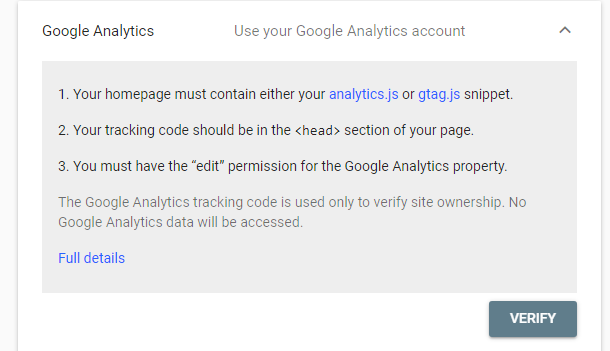
Google Analytics Verification Method
Google Tag Manager
Similarly, if you are already using the Google Tag Manager, you can easily verify your site. You can do this if you have an active Google Tag Manager container snippet on your site. If your site is already using the container snippet, check if you have the “publish” permission for the Google Tag Manager container.
When everything is in place, you can click on the “Verify” button to complete the verification process.
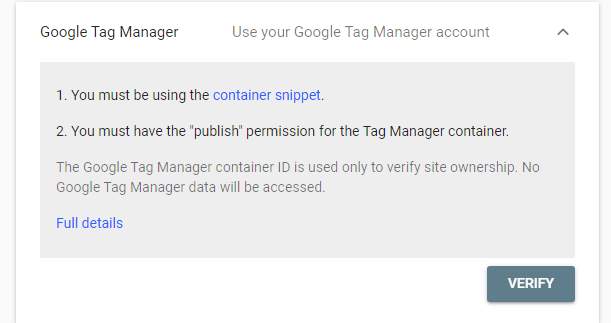
Google Tag Manager Verification Method
How Do I Submit an XML Sitemap to Google Search Console?
You can build and submit a sitemap using Google Search Console. These sitemaps inform search engines where they can find important content on your website. It also helps search engines crawl your web content.
To add an XML sitemap on Google Search Console, select the “Sitemaps” tab from the menu. Then, in the box labeled “Enter sitemap URL,” paste the URL of your XML sitemap. Lastly, click on the “Submit” button.
How Do I Add a User to Google Search Console?
Take note that when you verify a website property on Google Search Console, you automatically have owner privileges. You can give other people (users) access to any or all of the data you have provided in the Google Search Console. There are three types of users in Search Console: Owner, Full User, and Restricted User.
Owners get complete control over all the property in Google Search Console. They are either verified or delegated and can add or remove other users. Meanwhile, full users have rights to all data in a particular property. They can take some action. Lastly, restricted users may not be able to see all data on Search Console.
To add a user, on the Google Search Console dashboard, choose a property and click on the “Settings” button. Next, hit on the “Users and permissions” button. Then, click on the “Add user” button. Input their email address and choose whether you give them full or restricted access. Remember that you can revoke or make the necessary changes to your users’ access.
How Do I Improve SEO Using Google Search Console?
Explore the following ways you can use Google Search Console to improve your website’s SEO performance.
Improve Underperforming Keyword Rankings
We consider keywords underperforming because they have not ranked high (first or second) on search engine results pages (SERPs). The immediate implication is that people usually click only the first or second results. As such, these underperforming keywords decrease your chance of increasing organic site traffic.
You can find and improve underperforming keywords in Google Search Console by first clicking the “Search Results” report and toggling on its average CTR and position data.
After that, head to the queries report and adjust the average ranking position filter to below 8.1. Doing so would allow you to sort the results by average position in descending order. Finally, identify your underperforming keywords from the list (those ranked in positions 3-8 or beyond).

Optimize Content with High Keyword Rankings but Low CTR
Say you get a web page with a high-ranking keyword. Getting that page to rank first will not guarantee a high click-through rate (CTR). So, determine which pages perform worse than average and identify the reason. Doing so will help you get more traffic and improve your CTR.
On the Google Search Console dashboard, go to the “Search results” report and toggle the average CTR and position data. After that, filter the keywords with an average ranking below 3.1. As a result, you can determine which keywords are already ranking in the first three on SERPs.
Then, arrange them in ascending order by keywords with many impressions but lower-than-average CTRs.
Fix Sitemap Issues and Concerns
After submitting your sitemaps to Google, you can never avoid the times when specific issues will arise. These issues generally involve how site crawlers have difficulty seeing and understanding what your website pages and content are about.
Sometimes these issues can cause crawlers to index your site URLs incorrectly. As such, you must always be on the lookout for problems regarding your submitted sitemaps.
To do this, click on the “Sitemaps” report on the Google Search Console dashboard. Then click the icon you see beside a sitemap. Click on the “See index coverage” button. After that, Search Console will show you tabs detailing the counts of errors, warnings, valid URLs, and excluded URLs it found in your sitemaps.

Determine Content That Gets the Most Backlinks
Backlinks are vital for websites because they help them rank higher on SERPs. So, focus on getting more backlinks to your site’s content. The more backlinks you get, the higher the chance of driving and improving site traffic.
To determine which type of content to publish on your site to get more backlinks, you need to check the content that you have already published. There’s no definite answer to this because there will always be distinctions among businesses in any industry.
However, you can still check using Google Search Console. Head on to the “Links” report and click on the “More” button. Tap on the “External links” tab and click on the “Top linked pages” report button. Determine patterns regarding the pages and topics that get the most backlinks from other websites.
Identify Pages That Need Internal Links and Updating
When you have already published page content that is similar or related to each other, this is a great opportunity to add internal links on those pages. Doing so would help your new page get indexed quickly and rank higher on SERPs.
Moreover, if you have pages with outdated content (and not enough internal links), their ability to drive site traffic would be close to zero. Thus, it would be best to either delete those pages or update them by adding more relevant internal links as needed.
Using Google Search Console, you can find web pages with few or no internal links. First, head to the “Links” report and click on the “More” button. Under “Internal links,” hit on the “Top linked pages” report. You can then sort the results in ascending order to see those outdated or forgotten pages.

Boost SEO with Google Search Console
With the help of Google Search Console, you can see how your web pages are performing on search engine results pages. As such, it only makes sense to incorporate it into your digital marketing plans and SEO activities.
If you need assistance navigating Google Search Console, it would be best to get help from experts from a web design and development company in the Philippines. Make the most out of Google Search Console today!
Get Design and Functionality
Specific to your Brand!
- Build a website that's mobile-friendly and responsive.
- Custom designs aligned with your brand.
- Optimized for SEO and user experience.
- Scalable and feature-rich solutions.

This article was updated on June 19, 2026.
Frequently Asked Questions
How do I get my website to show up on Google?
To appear on Google, ensure your website is crawlable, submit your sitemap through Google Search Console, create quality content, and earn relevant backlinks. Google then crawls and indexes your pages, making them eligible to appear in search results.
Why isn’t my website appearing in Google Search Results?
Common reasons include your site not being indexed, a recent website launch, crawl errors, a “noindex” tag, poor content quality, or strong competition. Technical SEO issues and manual penalties can also prevent pages from ranking or appearing in search results.
How to check if Google has indexed my website?
Search site:yourdomain.com on Google. If indexed pages appear, Google has added them to its index. You can also use the URL Inspection tool in Google Search Console to check the indexing status of specific pages.

About Jalou Batilong
Related News:


Web Development Trends for 2024

Essential Web Security Plans for Government Websites


Laravel Coding: Standards and Best Practices









Comment 0